M-VAVE FM-1 V16 Tutorial: Layering Sounds and Panning Left and Right
Since V16 the FM-1 can use 8 sounds at once. This post first shows how to layer two sounds and how to use pan to split them left and right, then does it for real, and finally uses a USB recording to measure how far apart the left and right channels are at different pan settings.
The short version: you have to turn pan much further than you'd expect. At R50 the other side still has half its level, so it only sounds slightly right of centre.
Setup
- FM-1 firmware: V16 (upgraded from V15 on 2026-10-22)
- Headphones: ordinary flat-head earbuds, FAAEAL 臻聲 鳶尾 紀念版, plugged into the FM-1's 3.5 mm headphone jack
- For the measurements: the FM-1 connected to a MacBook Air over USB-C, recording from the USB audio input "FM-1 Audio"
Getting to know V16's Voices
V15 could only use one preset at a time. V16 has 8 Voices (Voice1–8); each Voice has its own preset, plus its own MIDI channel, level, pan and on/off switch, and all 8 Voices share 20 notes of polyphony.
These settings live in the PRESETS pop-up: turn PRESETS to bring up the preset list, and on top there's a new row with FX, Voice1, V2…. Turn SELECT to choose which one to set, and K1–K4 at the bottom become that Voice's settings:
| Knob | Setting | Voice1 default |
|---|---|---|
| K1 | MIDI Ch | All |
| K2 | Level | 100% |
| K3 | Pan | Center |
| K4 | On/Off | On |
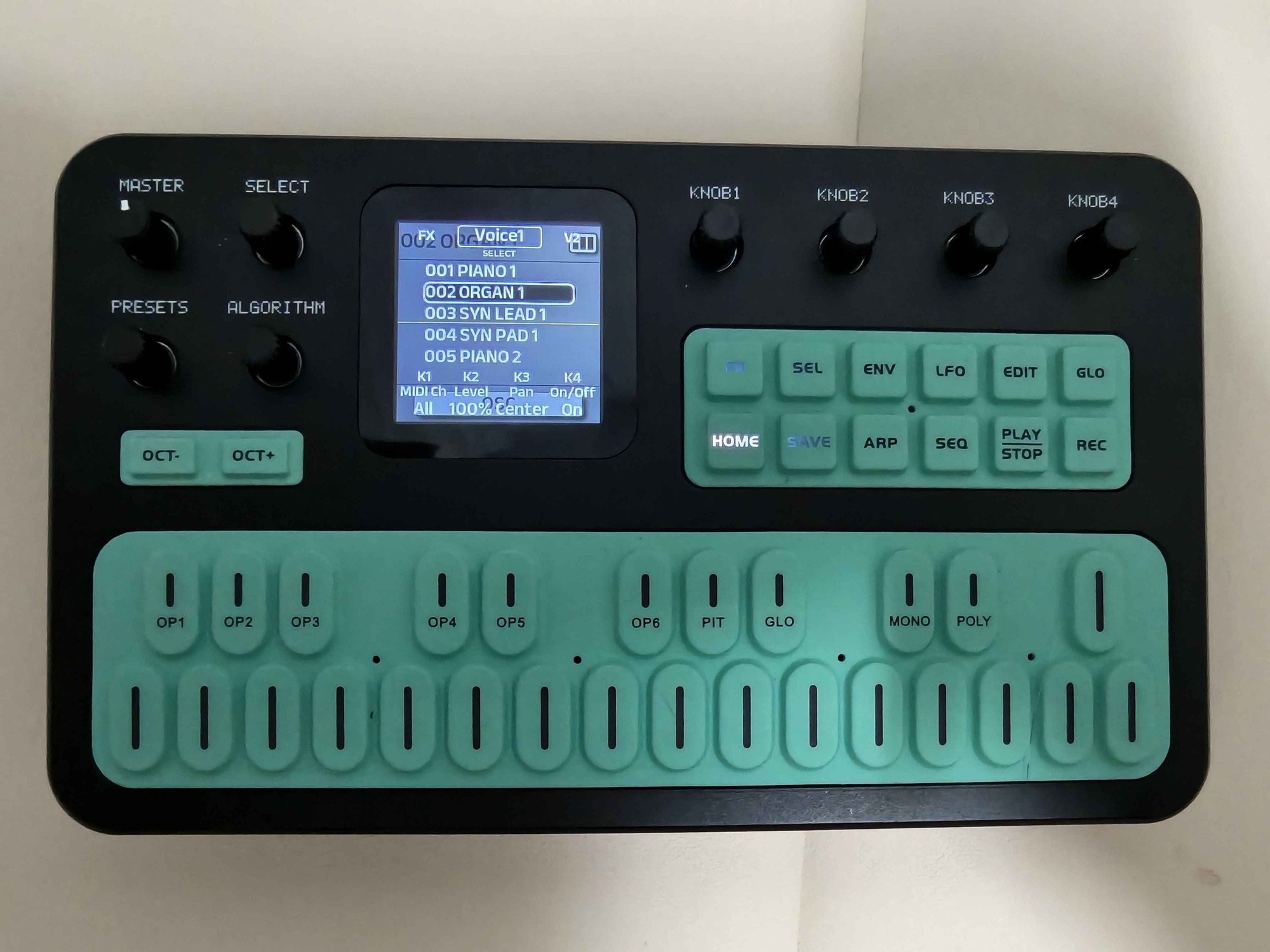
The pop-up closes after about 3 seconds of inactivity, and once it closes K1–K4 go back to whatever the underlying screen uses them for; they no longer set the Voice. So at every step, watch whether the numbers on the screen are changing as you turn, and if you've paused too long, turn PRESETS again to bring the pop-up back.
Tutorial 1: layering sounds
- Turn PRESETS to bring up the pop-up, and turn SELECT to V2
- Turn PRESETS to choose a preset for V2
- Turn K4 to set V2 to On (V2 is Off by default)
- Play: Voice1 and V2 sound together
Both Voices are on MIDI channel All, so every key triggers both. Set the balance between the two sounds with each Voice's K2 (Level).
Tutorial 2: panning left and right
- Turn PRESETS to bring up the pop-up, and turn SELECT to the Voice you want to adjust
- Turn K3: turning left (counter-clockwise) moves it towards L, turning right (clockwise) towards R, with Center in the middle
- Listen on headphones, where the left/right difference is clearer. The built-in speaker sort of works too, but what you hear is level, not left and right: as you turn towards R the speaker gets gradually quieter, and at R100 it goes completely silent (the measurements at the end explain why). Note that the FM-1's headphone jack only takes two-ring (TRS) plugs; three-ring plugs on headphones with a microphone, such as Apple EarPods, don't work
Hands-on: layering two sounds and splitting them left and right
Voice1 on 001 PIANO 1, V2 on 004 SYN PAD 1. Layering them with the steps above went smoothly: piano and pad played together.
Then, with headphones on, I turned V2's pan a little to the left and to the right, and it sounded exactly as if I hadn't touched it. I thought pan wasn't working, and suspected two things in turn:
- Had the 3-second pop-up closed, so K3 was no longer pan? I checked that the pan value on the screen really did change as I turned K3, so that wasn't it
- Was V2 not sounding at all? The two sounds were definitely layered, so that wasn't it either
Finally I turned pan all the way to R100, and only then could I clearly hear the sound move to the right. So pan does work; you just can't hear small adjustments.
Measurement: how far you have to turn pan
To find out how far is far enough to hear, I turned on only Voice1 and set its pan to R25, R50 and R100, recording 15 seconds each time while playing a few notes. Level and MASTER stayed the same for all three, and how hard I played doesn't affect the result, because what's compared is the difference between the left and right channels:
| Pan | Left | Right | Difference |
|---|---|---|---|
| R25 | −36.8 dB | −34.3 dB | 2.4 dB |
| R50 | −40.2 dB | −34.3 dB | 5.9 dB |
| R100 | Silent | −34.4 dB | — |
The table shows two things:
- Panning right barely changes the right channel (−34.3 to −34.4 dB in all three); only the left channel gets quieter
- What's left of the left channel follows the pan value exactly: 0.75 at R25, 0.5 at R50 and 0 at R100
In other words, the FM-1's pan leaves the near side alone and turns the far side down in proportion. At R25 the two sides differ by only 2.4 dB, which is barely noticeable; at R50 it's still only 6 dB, so it sounds just slightly off-centre; only at R100, with the far side switched off completely, does it become clearly "right only".
This also explains the built-in speaker: at R100 the left channel in the USB recording is exactly 0, and the speaker is completely silent at R100 too; panning towards L, on the other hand, doesn't change the speaker's level at all. So the built-in speaker plays only the left channel. On the built-in speaker, panning towards R just turns the level down, and panning towards L makes no audible difference.
That means if you pan sounds apart, the built-in speaker loses whatever is in the right channel. For an arrangement with two sounds split apart like the hands-on example, use headphones or external speakers to hear all of it.
By the way, without any pan the FM-1's synth output is mono, with identical left and right channels. Stereo effects such as Reverb, Delay, Chorus and Phaser also make the two sides differ, but that's the effects at work, not pan.
Wrapping up
After trying it, I think this takes a lot of practice, ideally until it's muscle memory. The menu closes by itself whenever no knob movement is detected for 3 seconds, and when you're not used to it you still have to stop and think about which knob comes next; time runs out, the menu closes, and you have to start over.