Flashing the M-VAVE FM-1 from the Official Web Page: Installing FM1 Open V14, Then Back to Stock V15
Updating the FM-1's firmware used to mean downloading M-UPGRADE and the firmware file first (see Firmware upgrade and rollback). The official FM1 Open workbench can flash it straight from the browser. Flashing firmware from a web page means no separate flashing software to download, which is so much more convenient.
When I wrote FM1 Open vs. stock V15 I was still on the fence and had only played with the workbench's simulator. This time I actually flashed my FM-1 from stock V16 to FM1 Open V14, then used the same web page to flash it back to stock V15. Each flash took about 10 seconds.
Setup
- MacBook Air (Mac16,12), macOS 27.0.1
- Browser: Brave 1.98.60 (Chromium 156)
- The FM-1's original firmware: V16
- FM-1 plugged straight into the Mac with a USB-C cable
- Workbench: open.m-vave.com/fm1-workbench; the page says it is V14
The workbench
The workbench has four tabs: Play & edit, Projects & sounds, Device update and Help. With no device connected, Play & edit shows "Browser preview · no device", and you can play the FM1 Open simulator right in the browser. Flashing happens on the Device update tab.
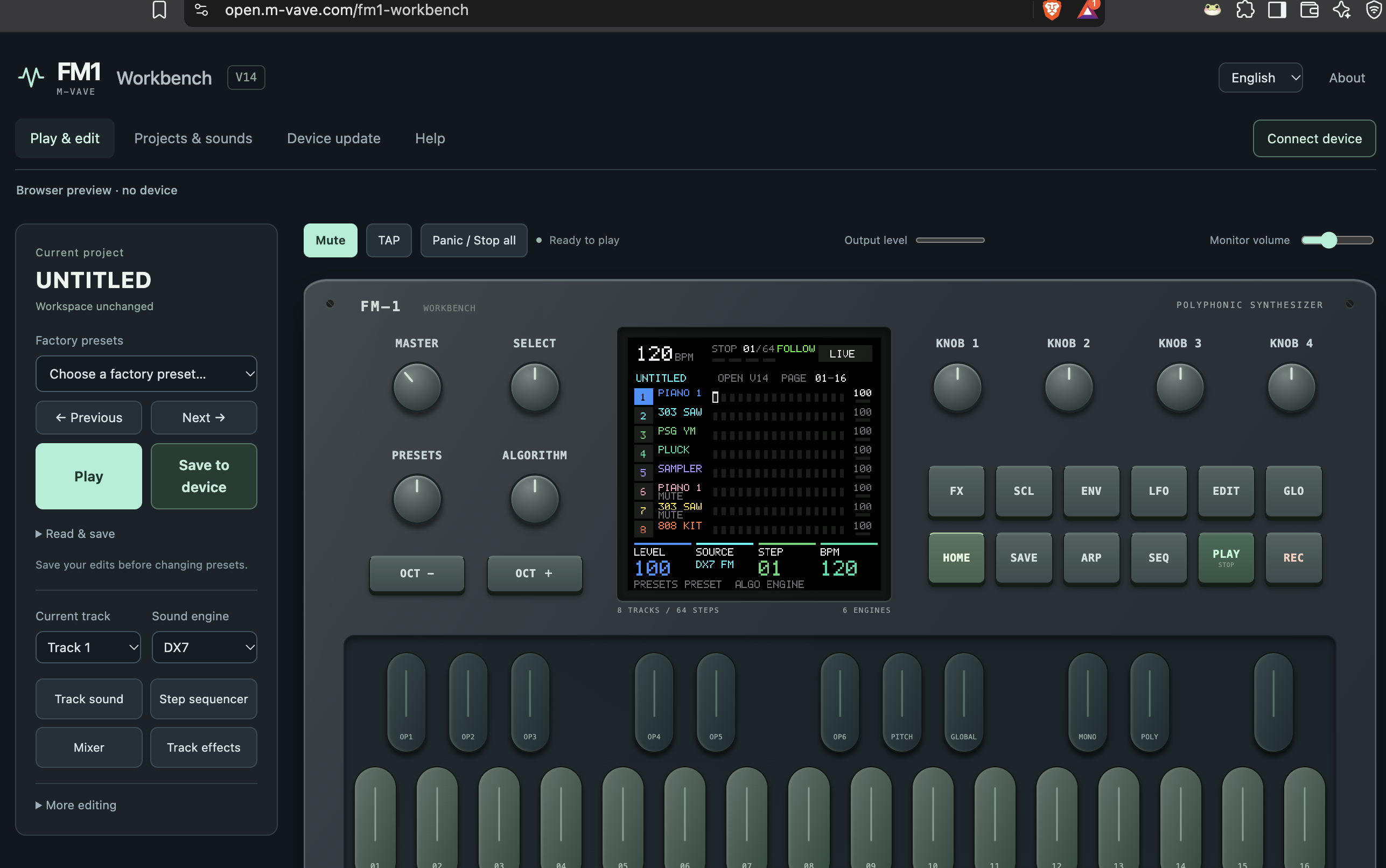
1. Installing FM1 Open V14
Opening Device update
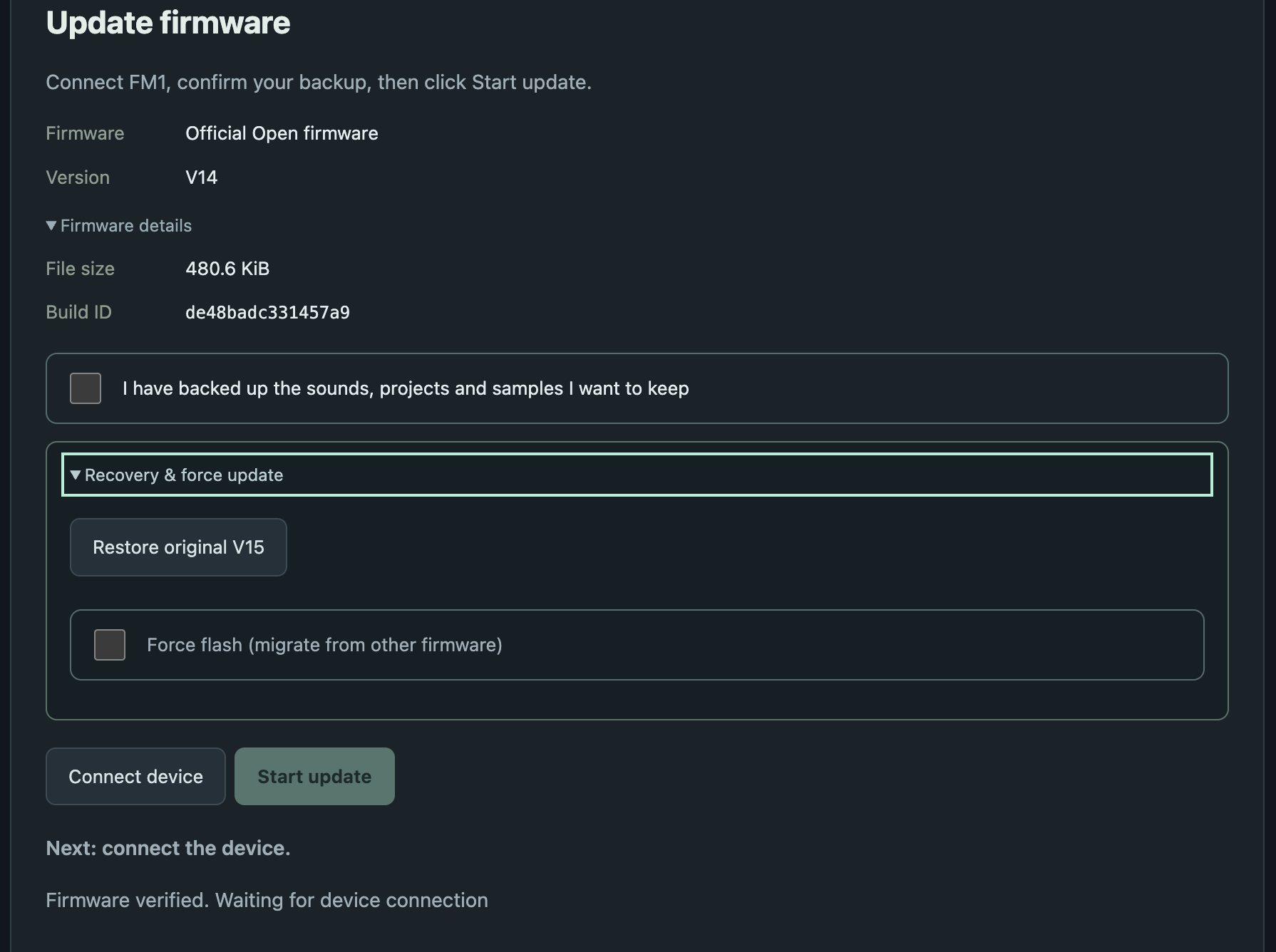
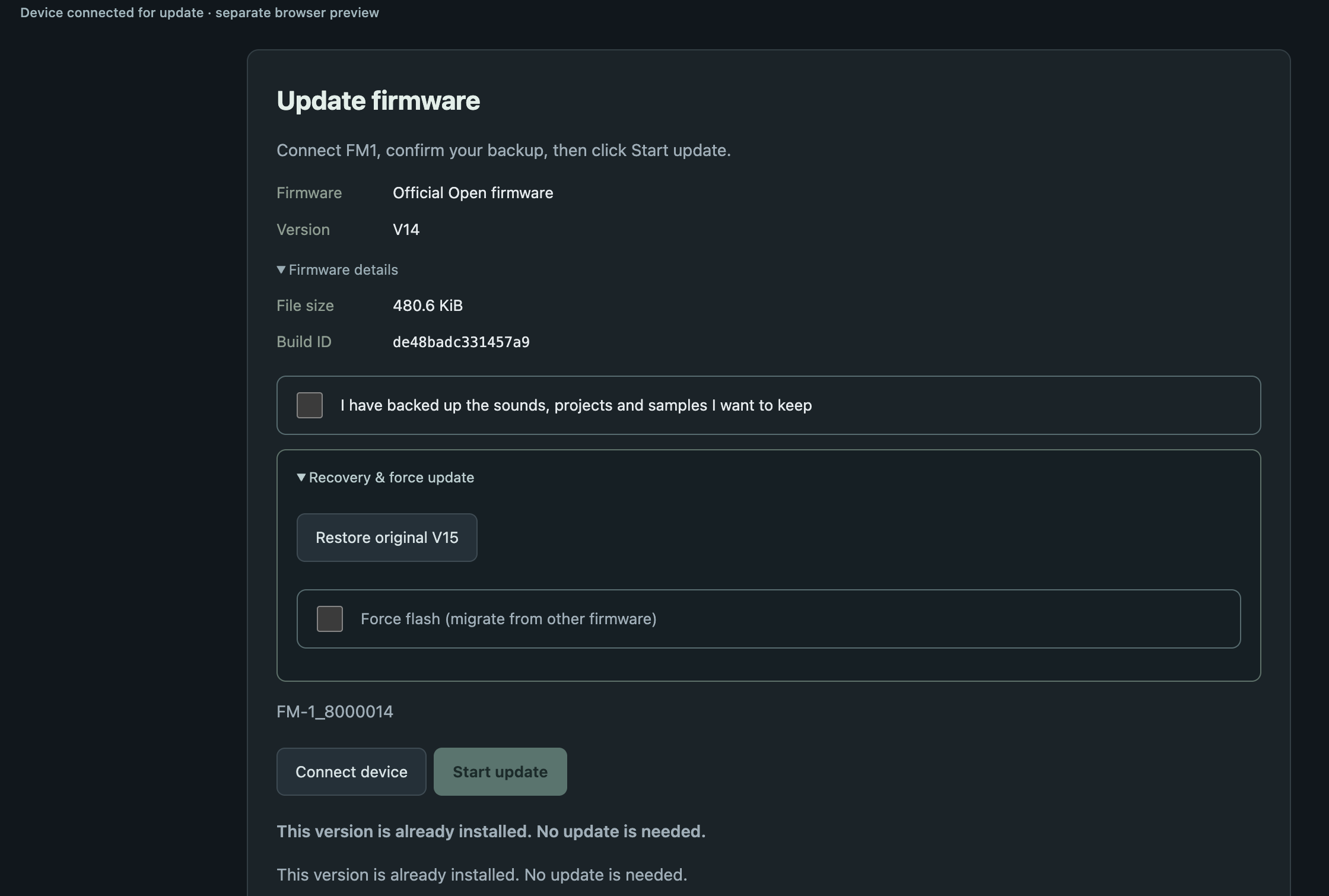
By default the Device update tab is set to flash "Official Open firmware" V14. Expanding Firmware details shows a file size of 480.6 KiB and Build ID de48badc331457a9.
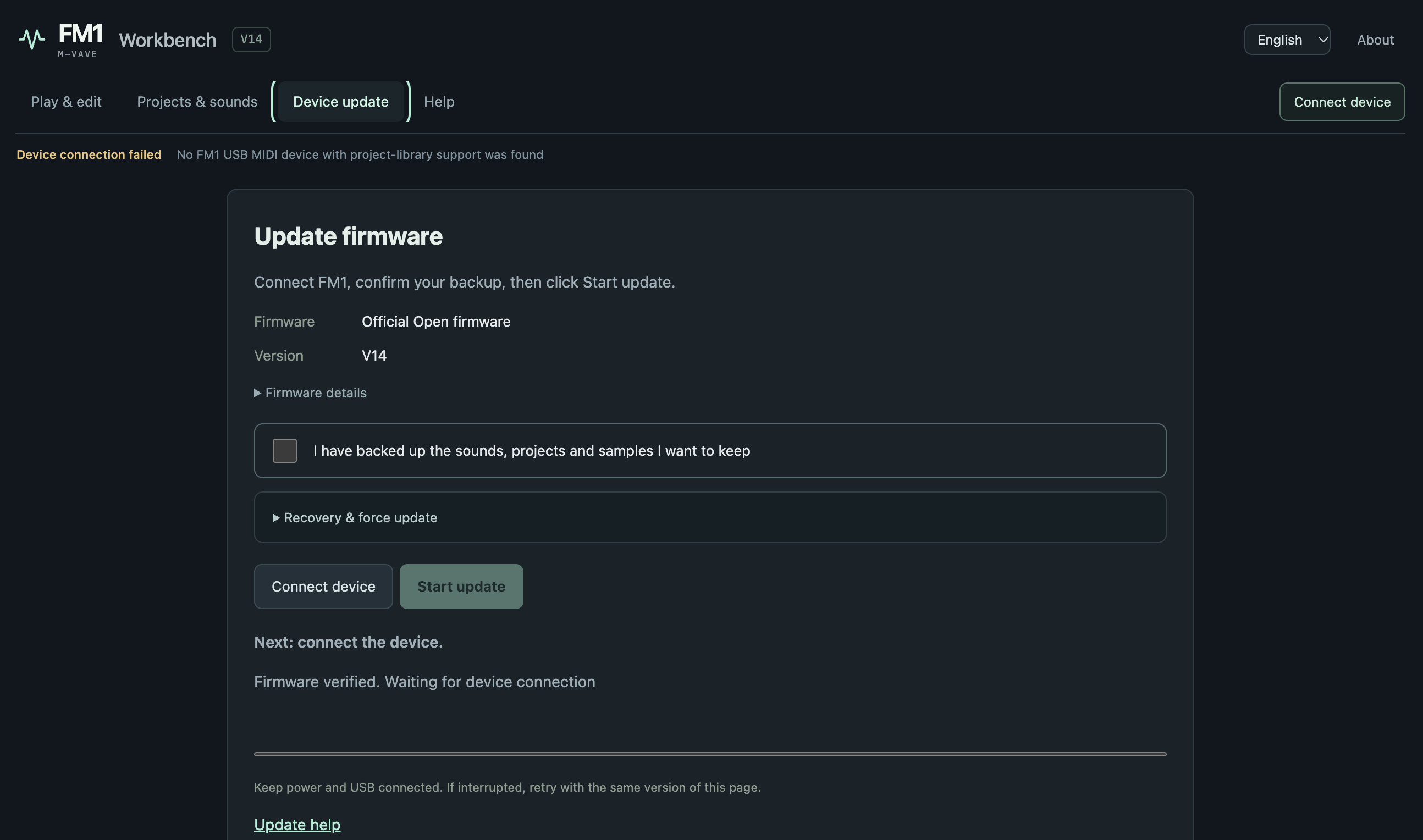
Connection failed
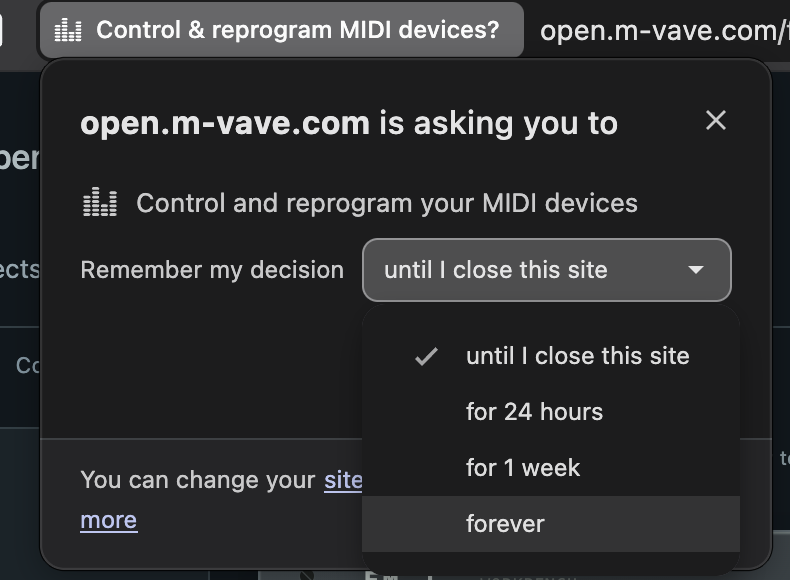
When you click Connect device, Brave first asks whether to let the site "Control and reprogram your MIDI devices", with a drop-down for how long to remember the choice. I picked until I close this site and allowed it.
Even after allowing it, it still couldn't connect, and the page showed "Device connection failed":
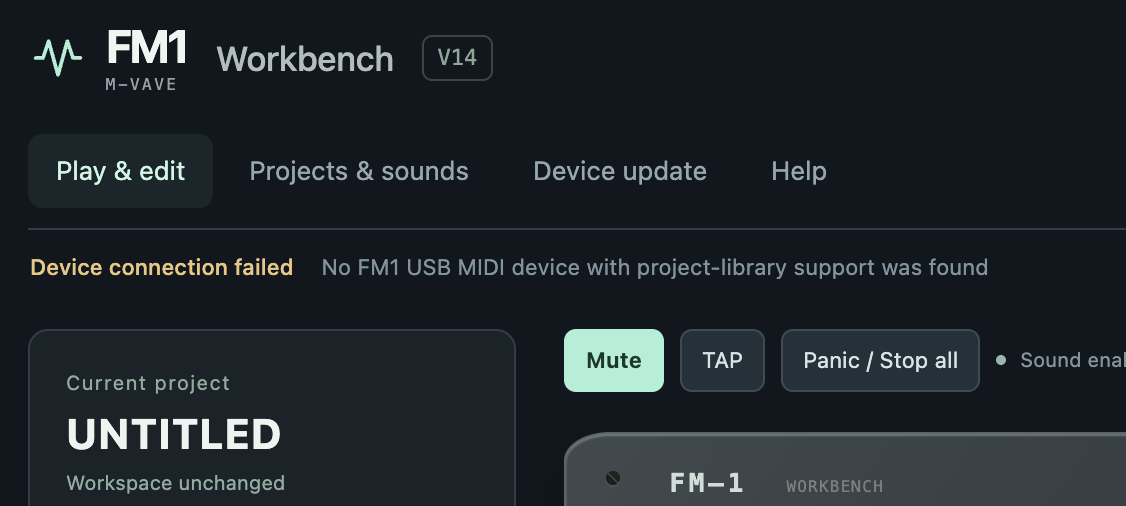
MIDI permission had already been granted, so the browser wasn't blocking it. Going by the wording, a plain Connect device looks for an FM-1 with "project-library" support, meaning one that already runs FM1 Open; the stock firmware doesn't understand that protocol, so it's treated as not found.
The fix is hidden in a collapsed menu called Recovery & force update. Remember to open that drop-down, or all you'll see is a Start update button that can't be clicked. Expanded, it has two options: Restore original V15, and Force flash (migrate from other firmware).
Force flashing
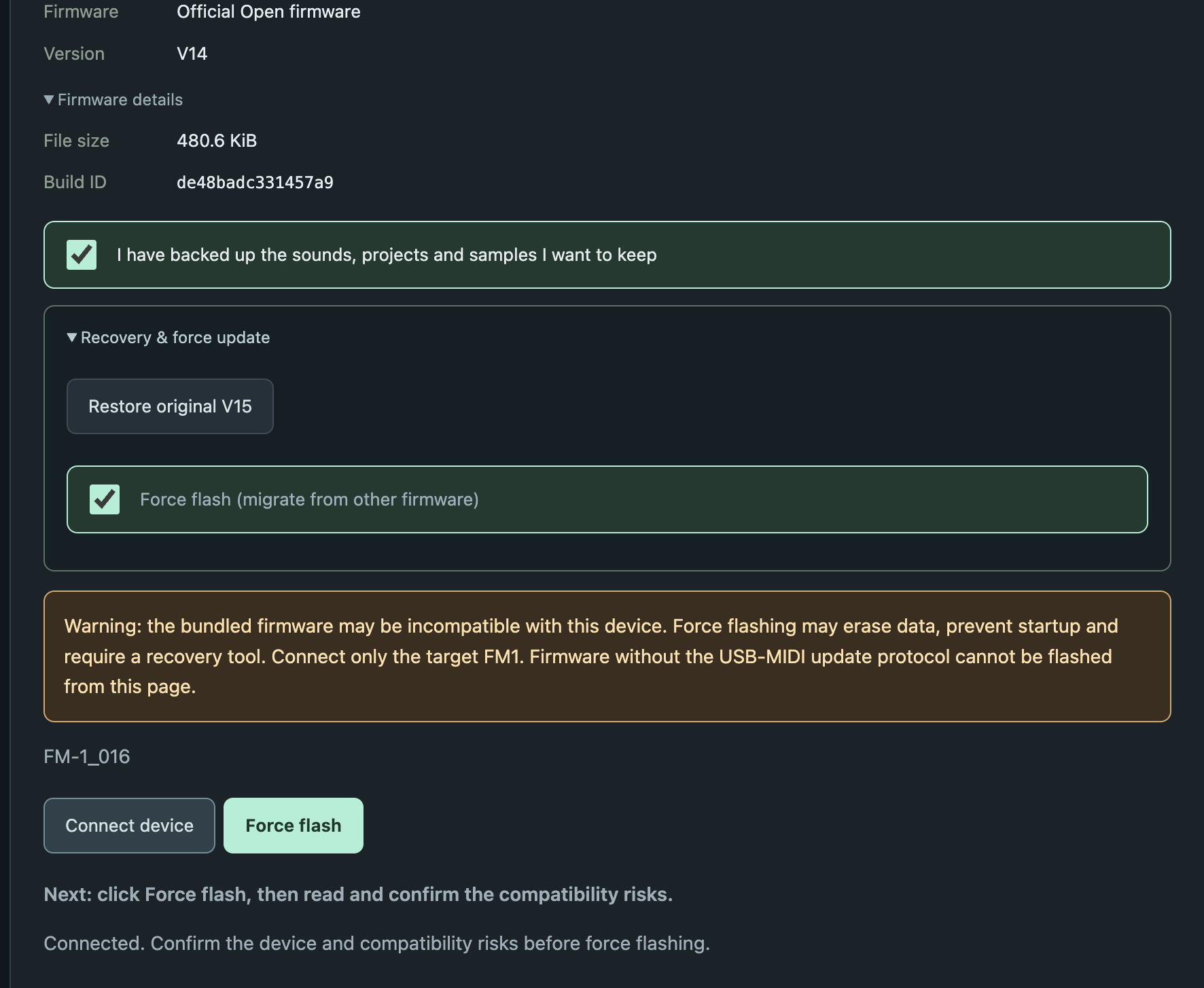
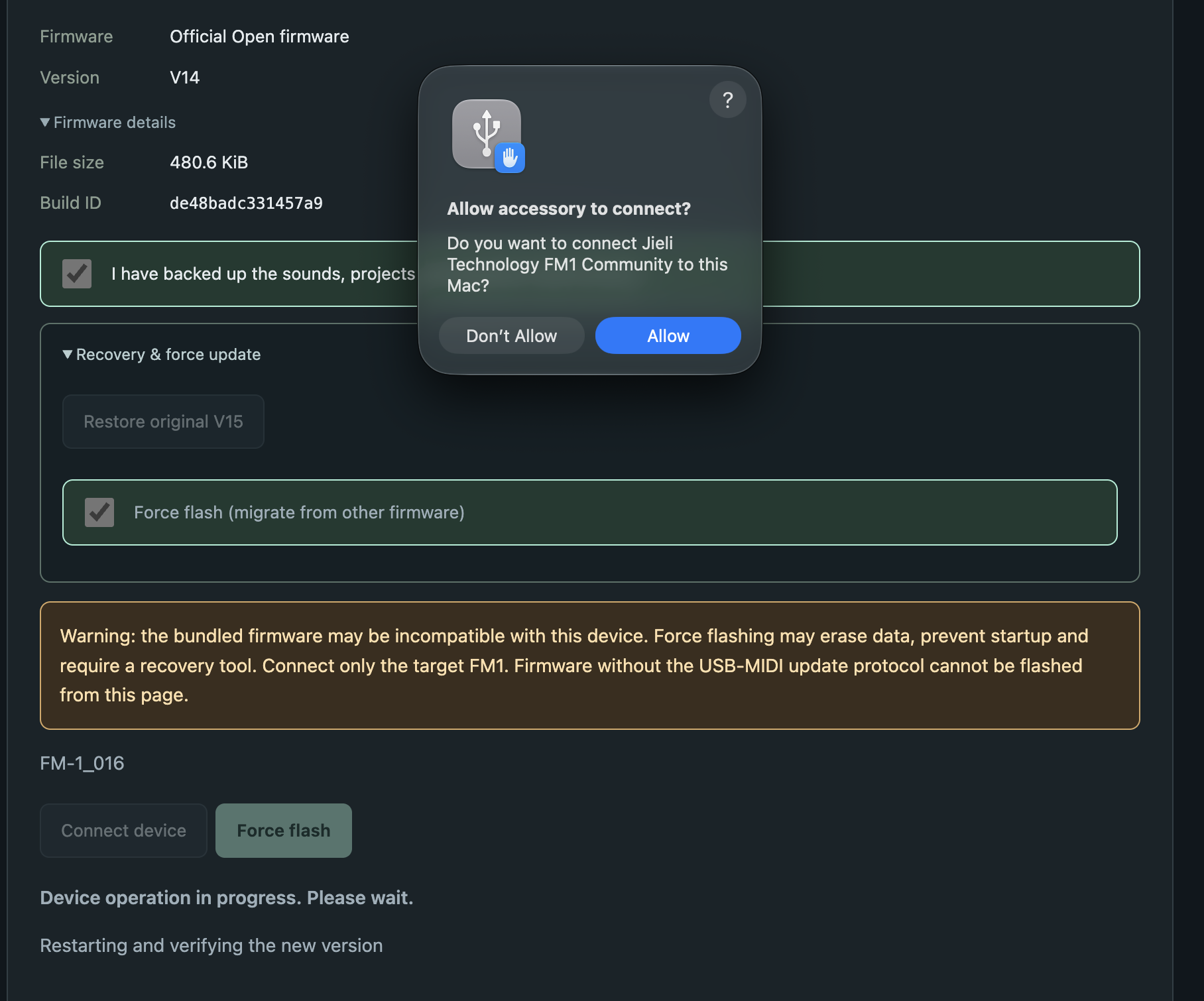
Tick Force flash and "I have backed up the sounds, projects and samples I want to keep", click Connect device again, and this time it connects. The page shows the current version as FM-1_016, the flash button turns into Force flash, and a yellow warning appears above it: the firmware may be incompatible, force flashing may erase data or stop the device from starting so that you need a recovery tool, and only one FM-1 should be connected.
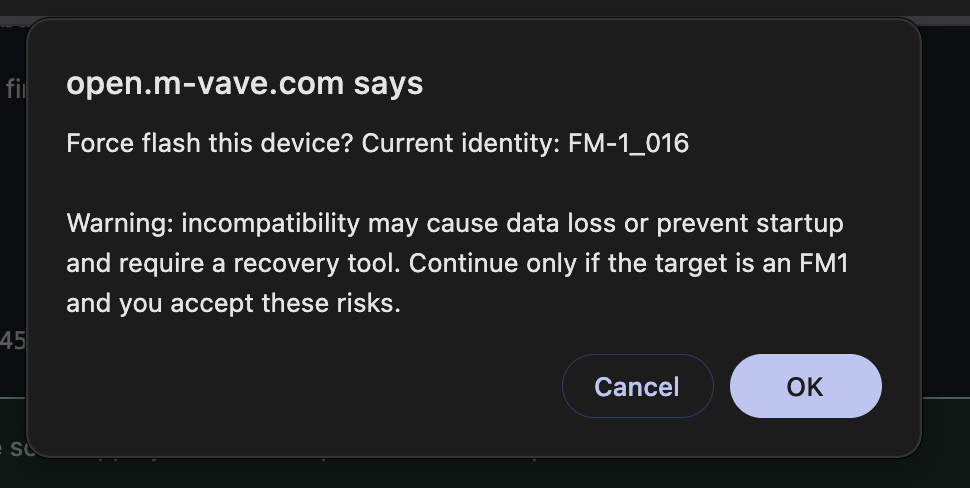
Clicking Force flash brings up one more confirmation, which says the current device is FM-1_016:
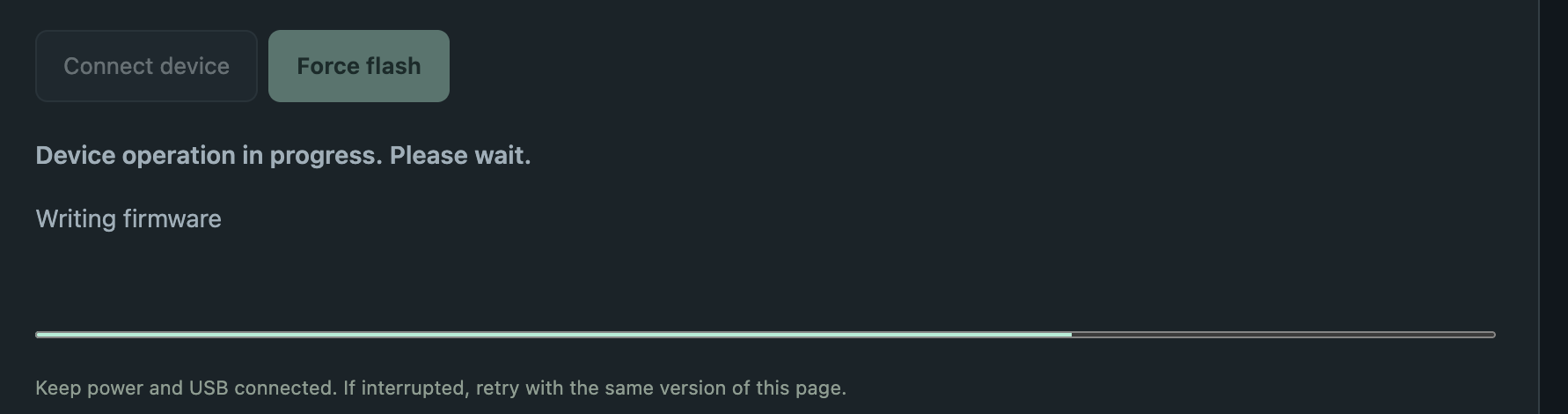
Click OK and writing starts, with the progress bar showing "Writing firmware":
Once it's written, the FM-1 restarts by itself and the screen goes black for a moment. The page then shows "Restarting and verifying the new version", and at the same time the Mac pops up "Allow accessory to connect?", asking whether to let "Jieli Technology FM1 Community" connect to this Mac. I clicked Allow.
From clicking OK to finishing took under 10 seconds. The completion message:
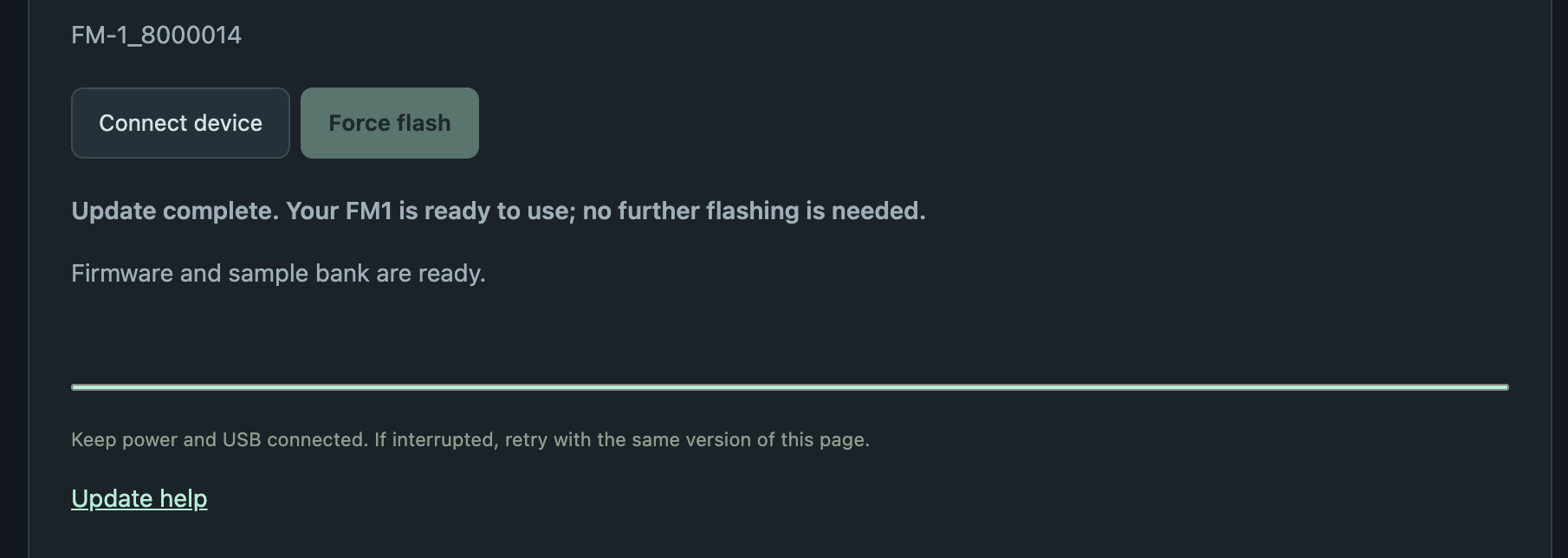
Besides the firmware, it also wrote the sample bank, which holds the sounds the SAMPLER track uses. Clicking Connect device again after flashing, the page shows FM-1_8000014 and says this version is already installed:
FM1 Open after flashing
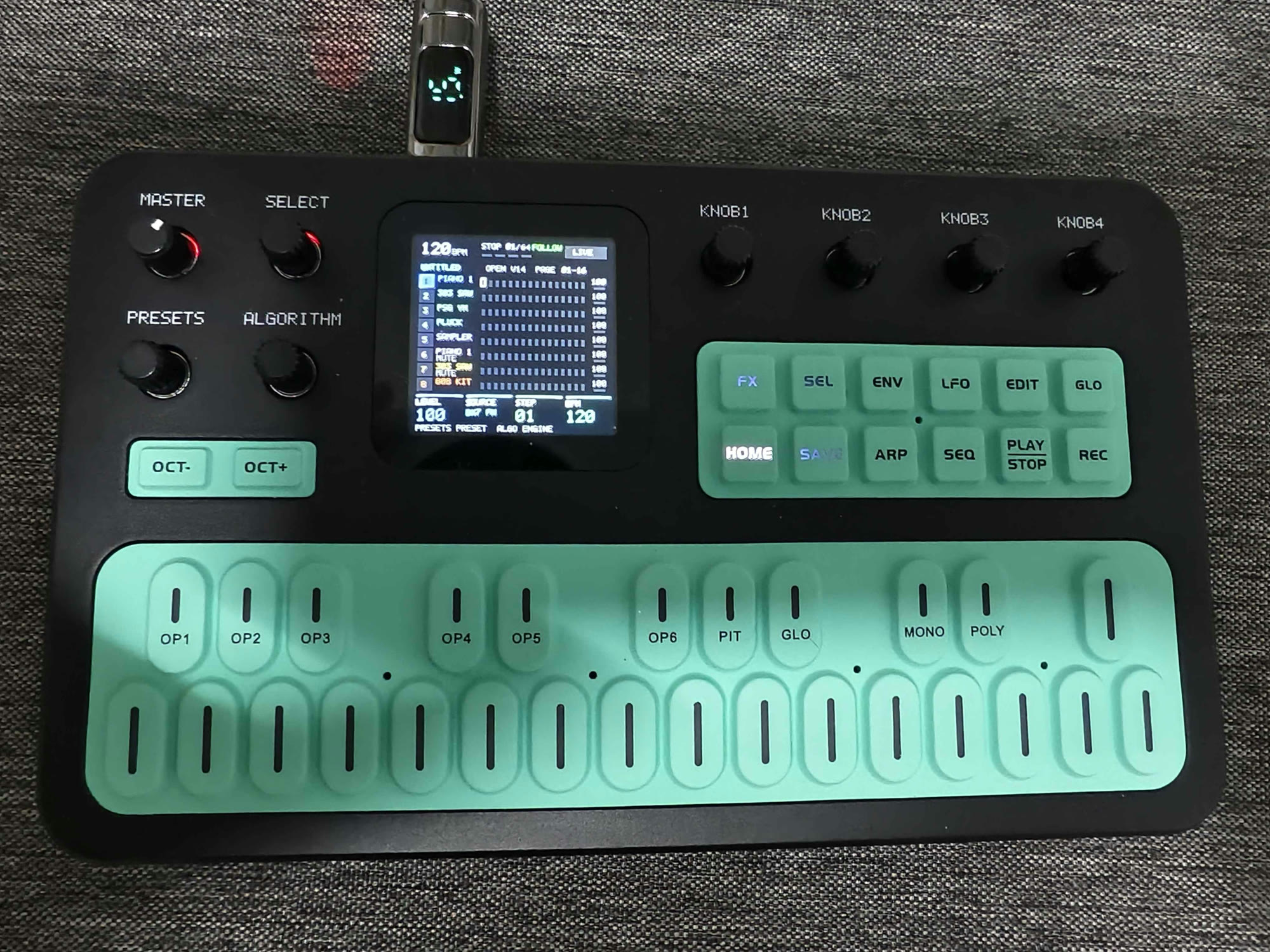
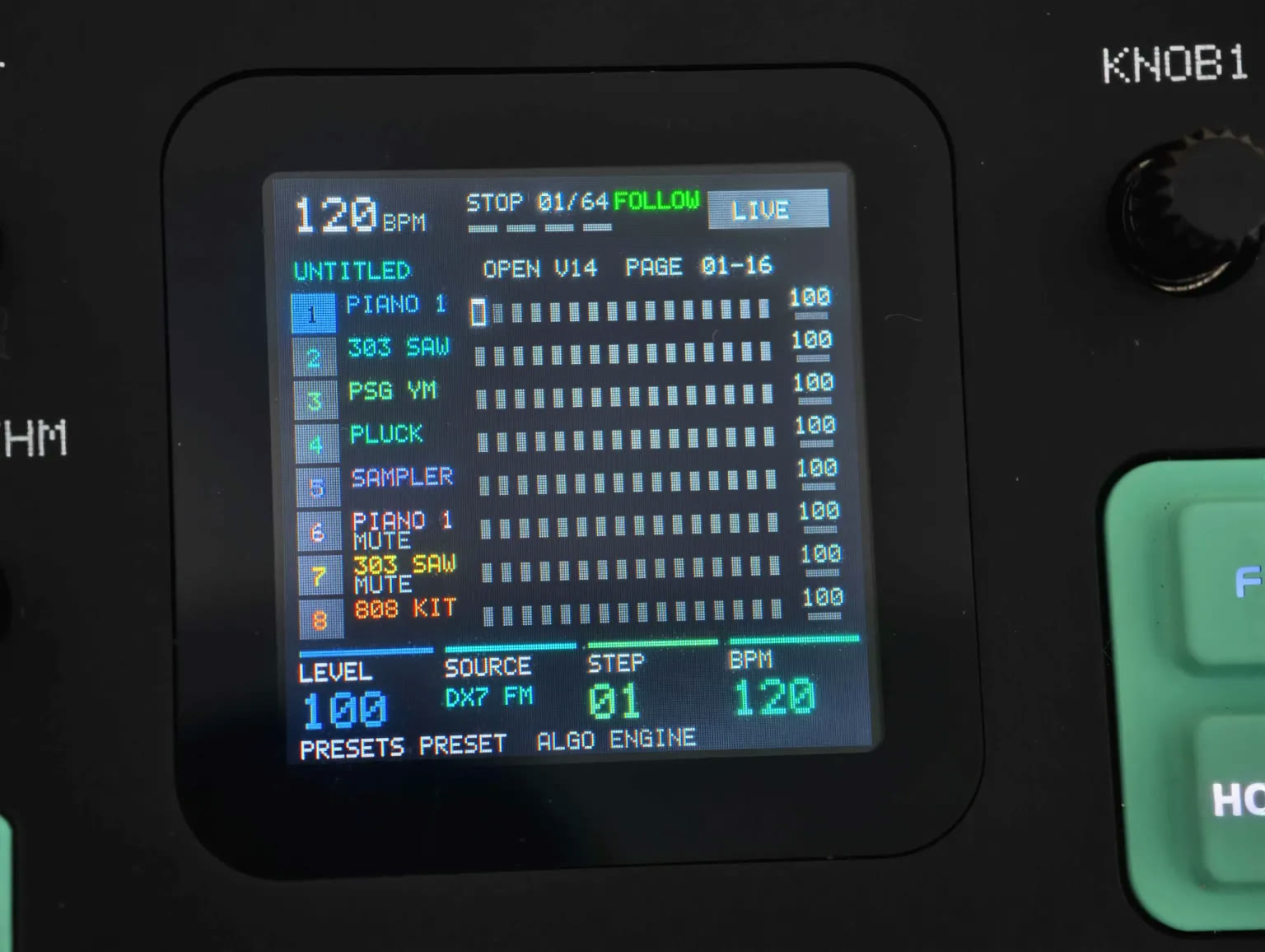
The screen is really refined and detailed, and it makes the whole thing feel a lot more professional. Stock V15 and V16 show a single sound; Open starts up on an overview of all 8 tracks, with each track's sound, level and 64-step grid on one screen.
Going by the source code on GitHub, the 16 demos are built into the firmware, so they're there as soon as you flash it. To listen to the demos, press PLAY and then turn PRESETS to switch between demo songs.
One more thing to watch: after flashing Open, the FM-1's names on the Mac change:
| Stock V16 | FM1 Open V14 | |
|---|---|---|
| MIDI device | USB Composite Device | FM1 Community |
| Audio device | FM-1 Audio | USB-Audio |
If your DAW remembers the FM-1 by name, you'll have to pick the device again after switching firmware.
2. Flashing back to stock V15
Again on the Device update tab, expand Recovery & force update and click Restore original V15.
This button doesn't start flashing; it only switches the firmware to be flashed to stock V15, and afterwards the button's label changes to "Switch to Official Open firmware". When I first saw that label, I thought it had switched back to the Open flashing page. Go by the Firmware field at the top: it now says Original V15 (FM-1_015), with a file size of 683.6 KiB, the same size as the stock V15 firmware file in the FM1 Open GitHub repo (699,956 bytes).
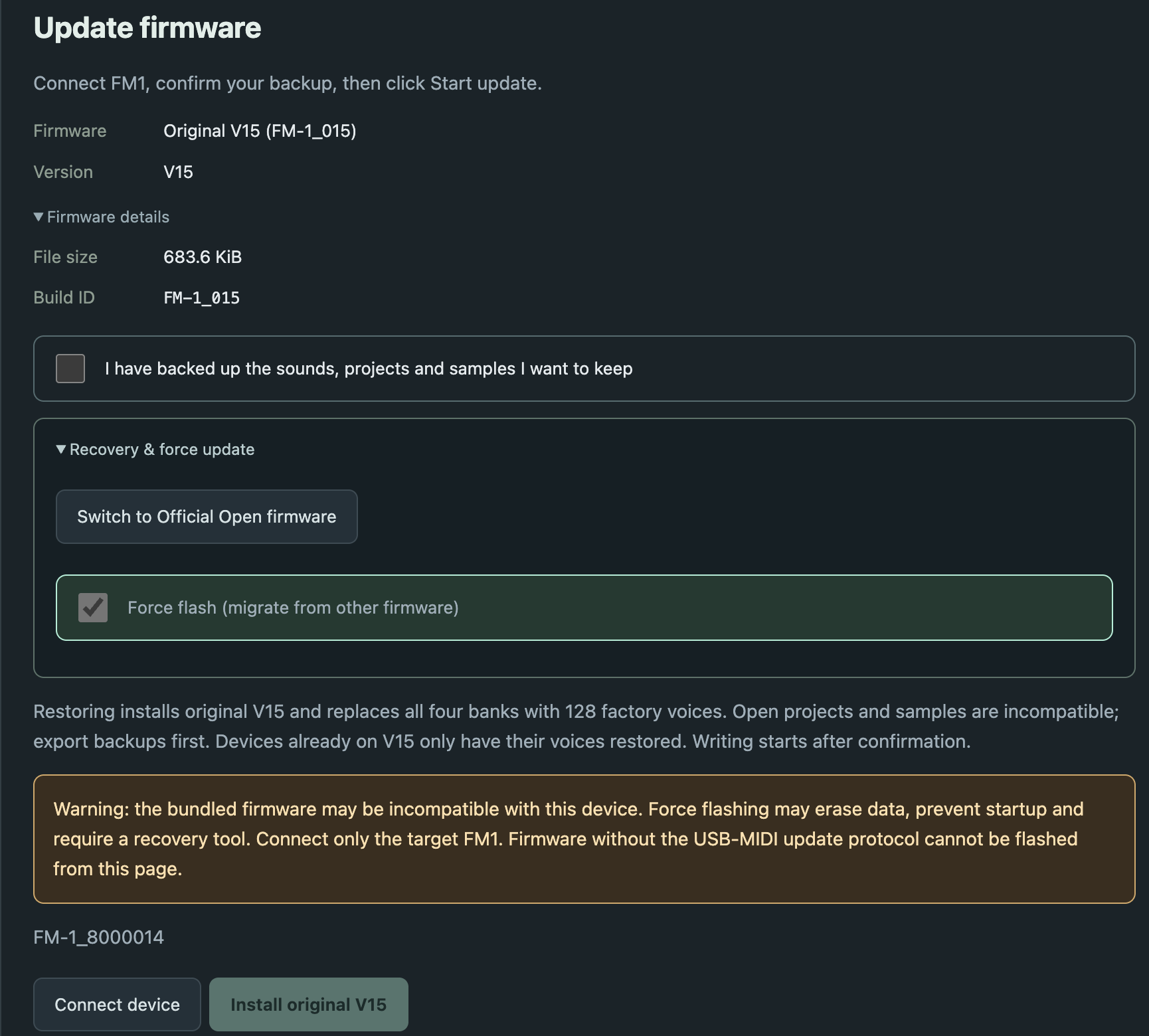
Force flash is now ticked automatically and greyed out, and the flash button becomes Install original V15. The explanation says that flashing back to V15 replaces all four voice banks with the 128 factory voices, and that Open projects and samples aren't compatible with stock, so export them first if you want them.
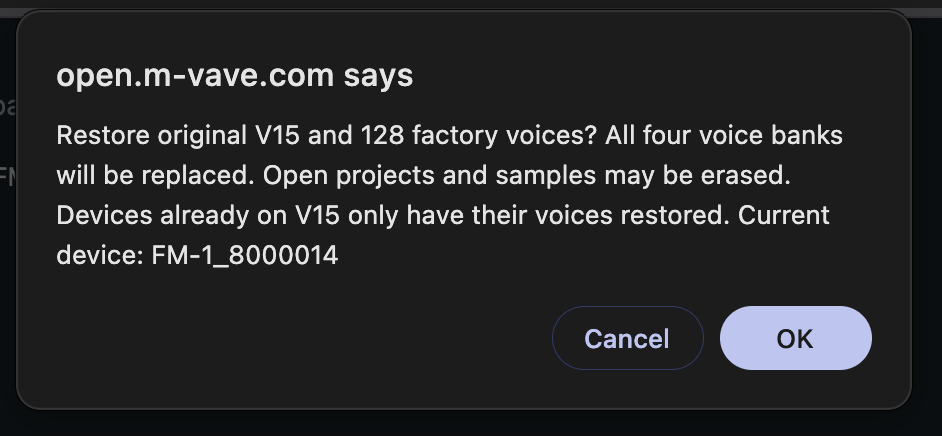
Tick the backup box and click Install original V15, and a confirmation dialog warns you again:
After clicking OK it again took about 10 seconds, and this time the Mac didn't pop up the allow-accessory dialog.
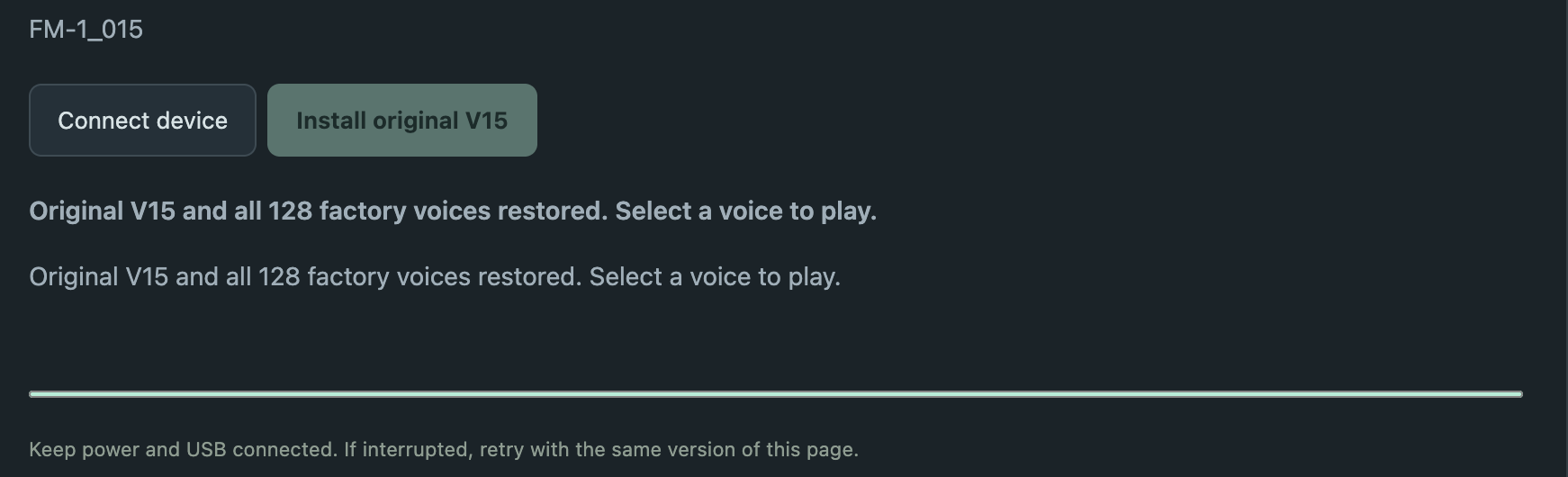
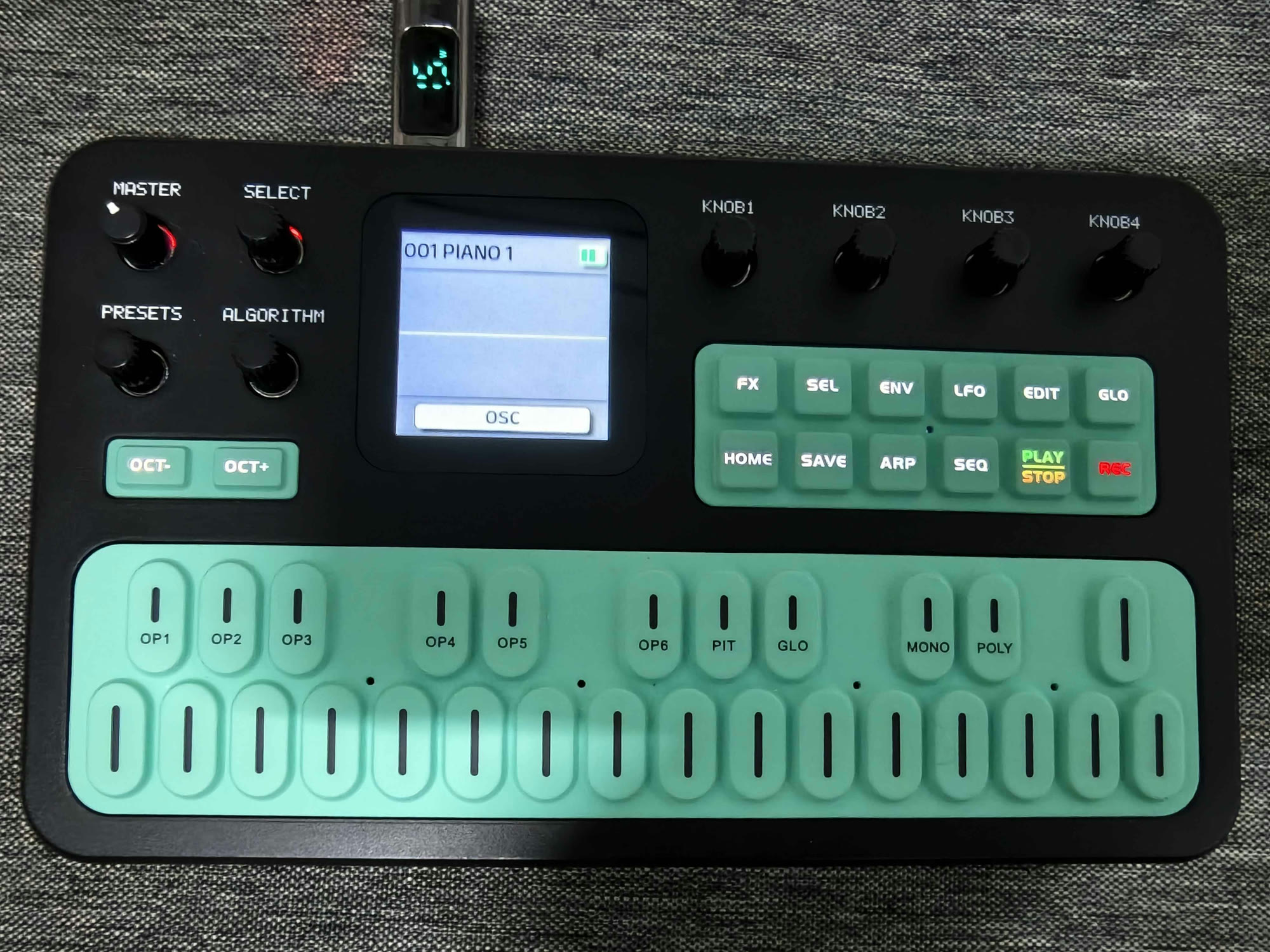
The version on the page is back to FM-1_015, and the names on the Mac are back to USB Composite Device and FM-1 Audio.
Conclusion
The web version seems to offer only two versions to flash, Open V14 and V15; to flash back to V16 you still have to rely on M-UPGRADE, with the same steps as in Firmware upgrade and rollback. My FM-1 is staying on V15 for now; next time I'll try flashing third-party firmware from the web.